Getting started
Sell your event photos in an afternoon.
Create an account, upload a shoot, set a price and share one link. Guests find the photos they're in with a selfie, and you get paid to M-Pesa or your bank.
-
Step 1
Create your account
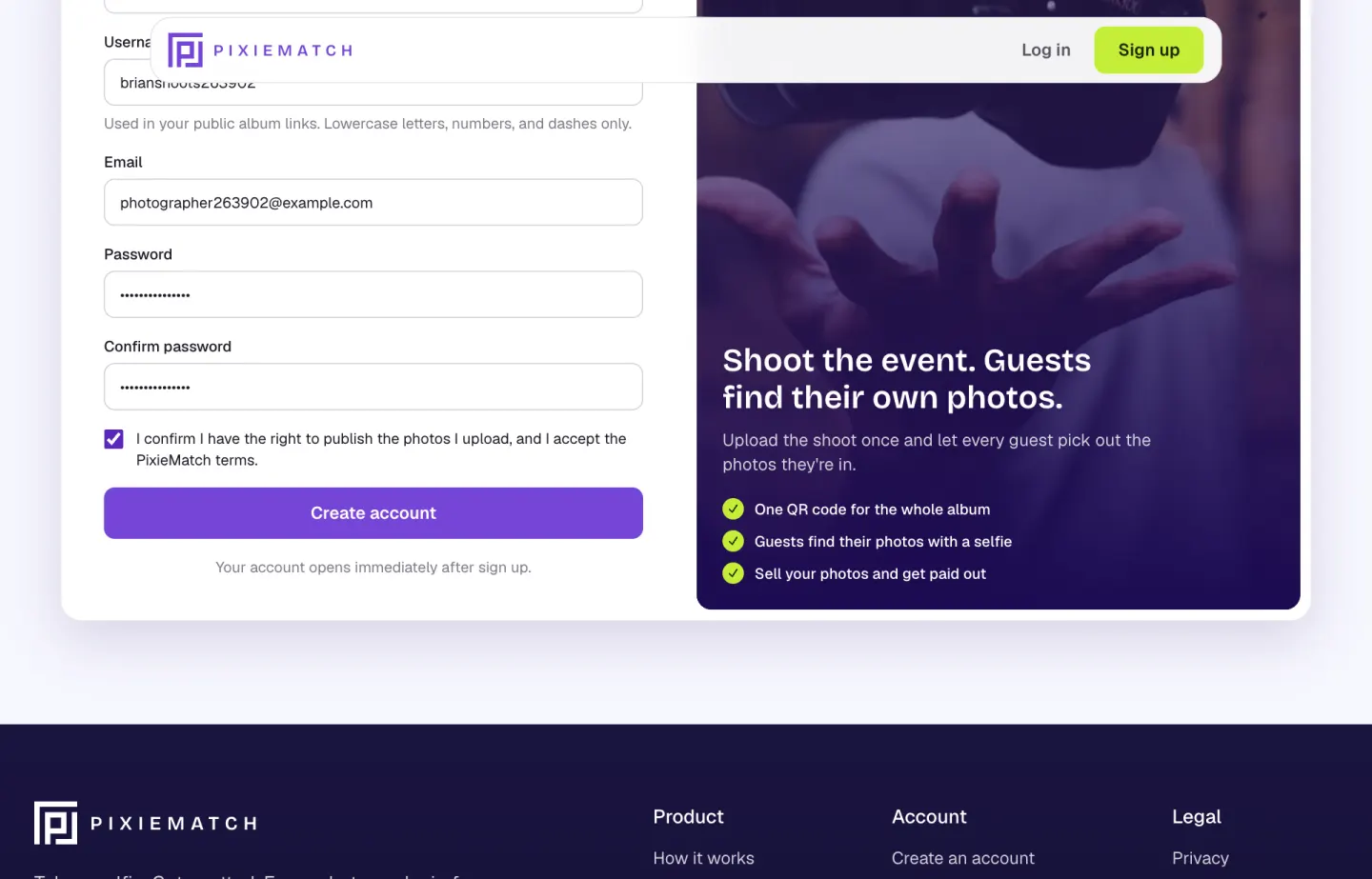
Go to Sign up and choose Photographer. Add your name, a username and your email, then set a password. Use this form: continuing with Google creates an organizer account.
- Your username appears in your public album links, so keep it short
- Your account opens straight away. There's no waiting for approval
-
Step 2
Find your way around the dashboard
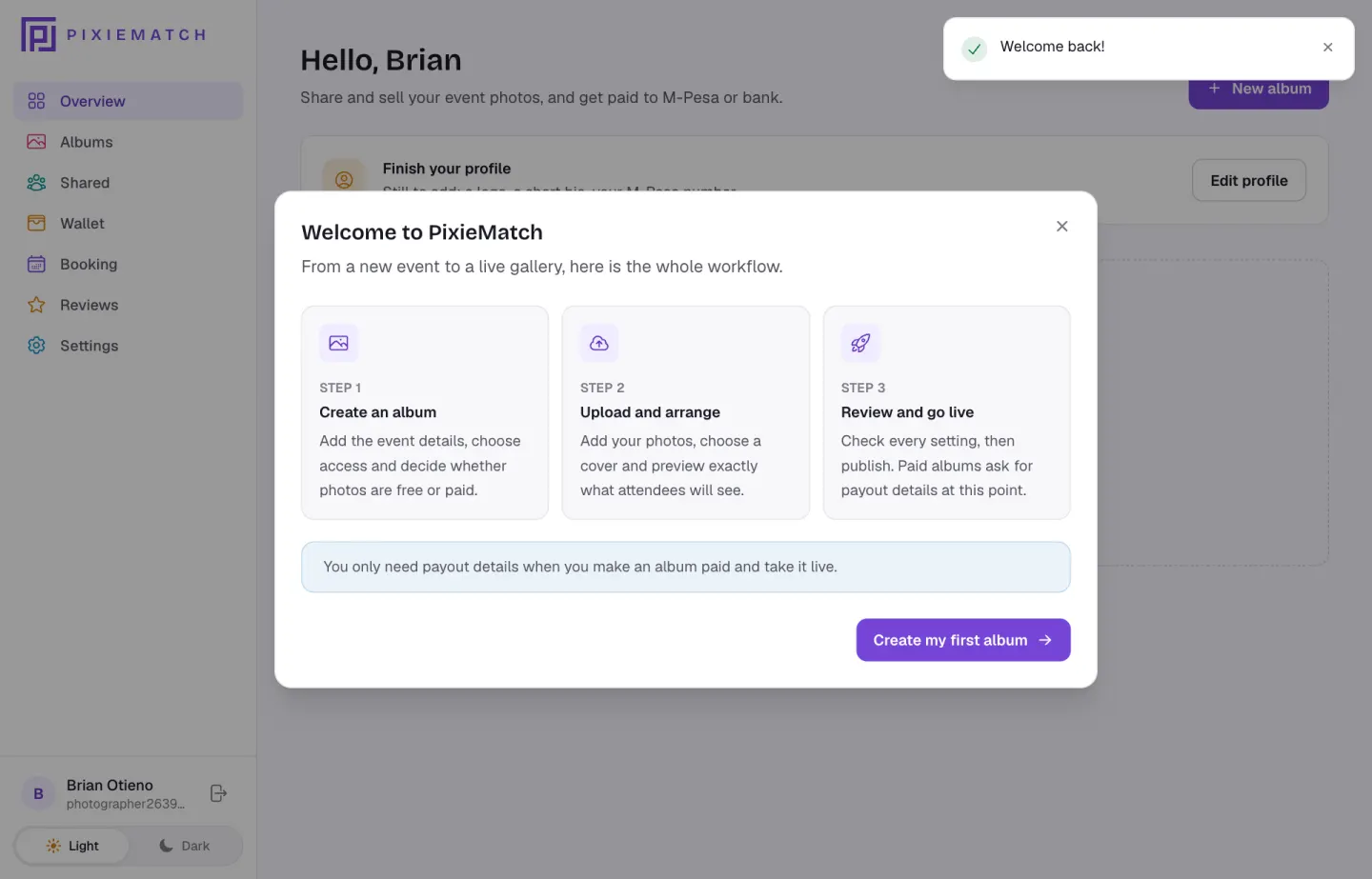
After you sign up, a short welcome lays out the whole workflow: create an album, upload, then go live. The sidebar holds your albums, wallet, bookings, reviews and settings.
-
Step 3
Tell us where to send your money
Under Wallet, add a mobile money number or a bank account. You only need this before a paid album goes live, but setting it up now saves a step later.
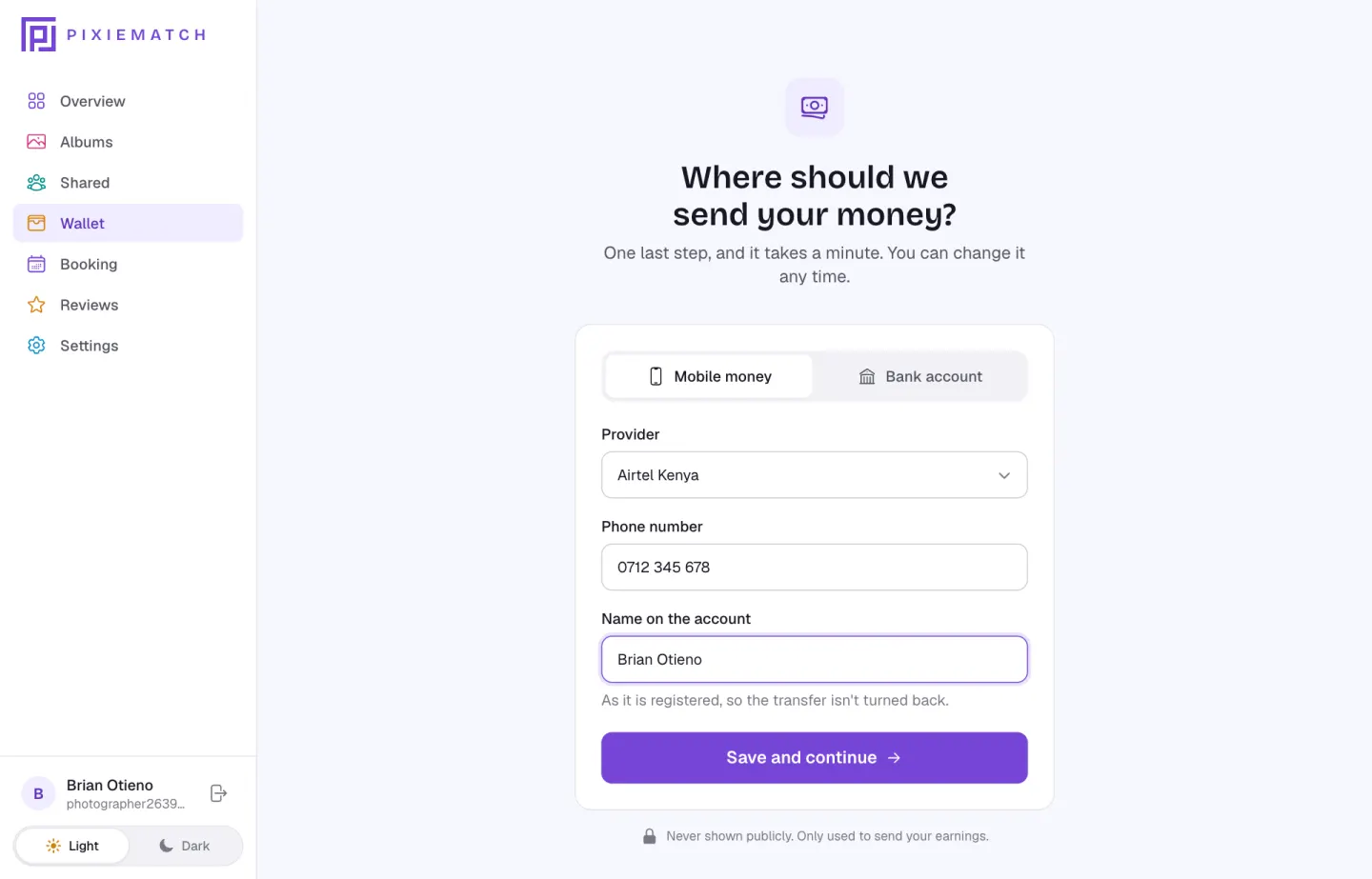
Enter the name exactly as it's registered with your provider, so transfers aren't turned back.
-
Step 4
Create an album for the event
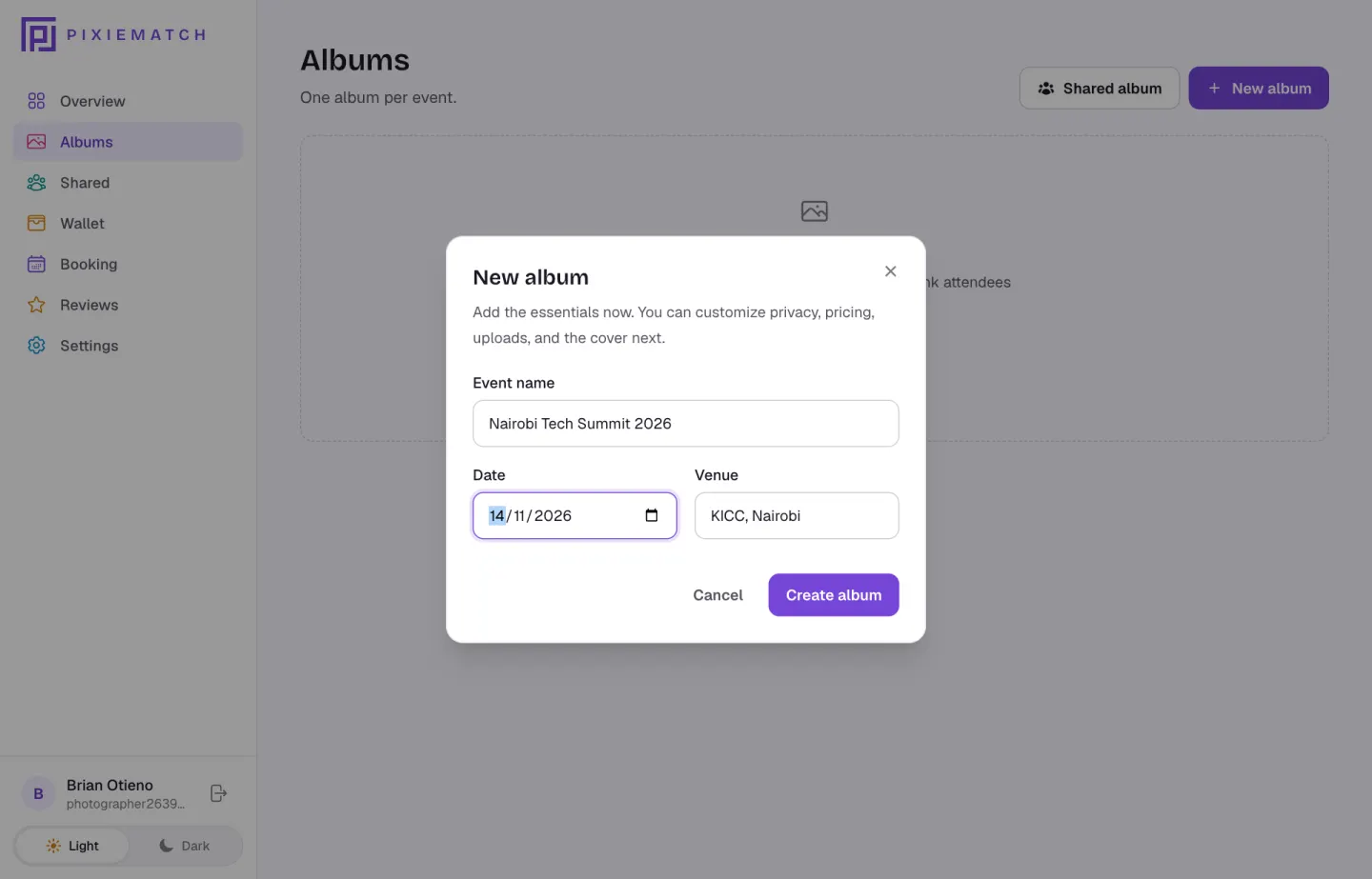
Click New album and add the event name, date and venue. Each event gets its own album, link and QR code.
-
Step 5
Get to know your album page
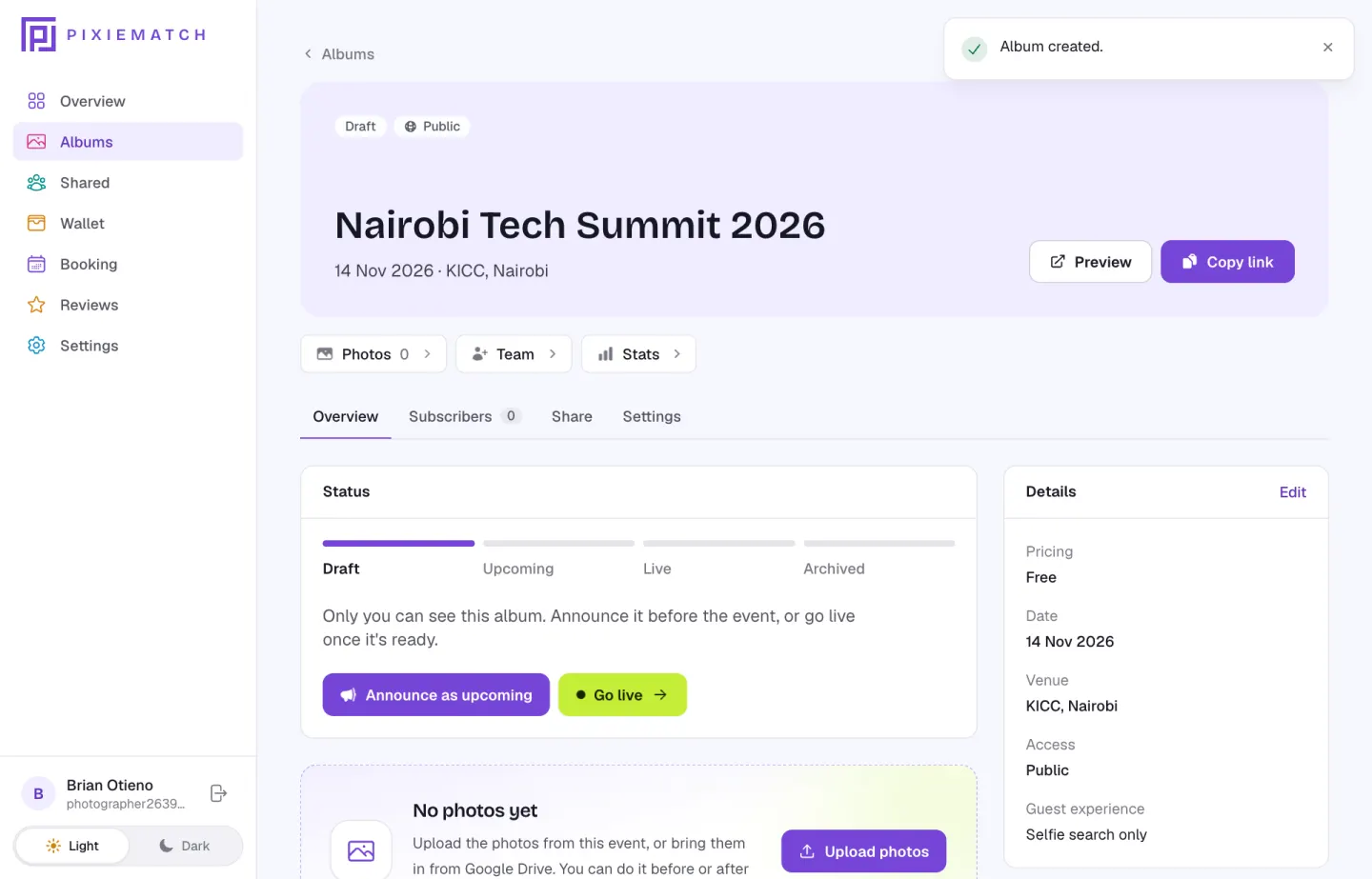
Your new album opens here. It links to Photos, Team and Stats, and the status bar shows where it is: Draft, Upcoming, Live, then Archived. It starts as a draft that only you can see, so you can set it up before anyone else does.
-
Step 6
Upload your photos
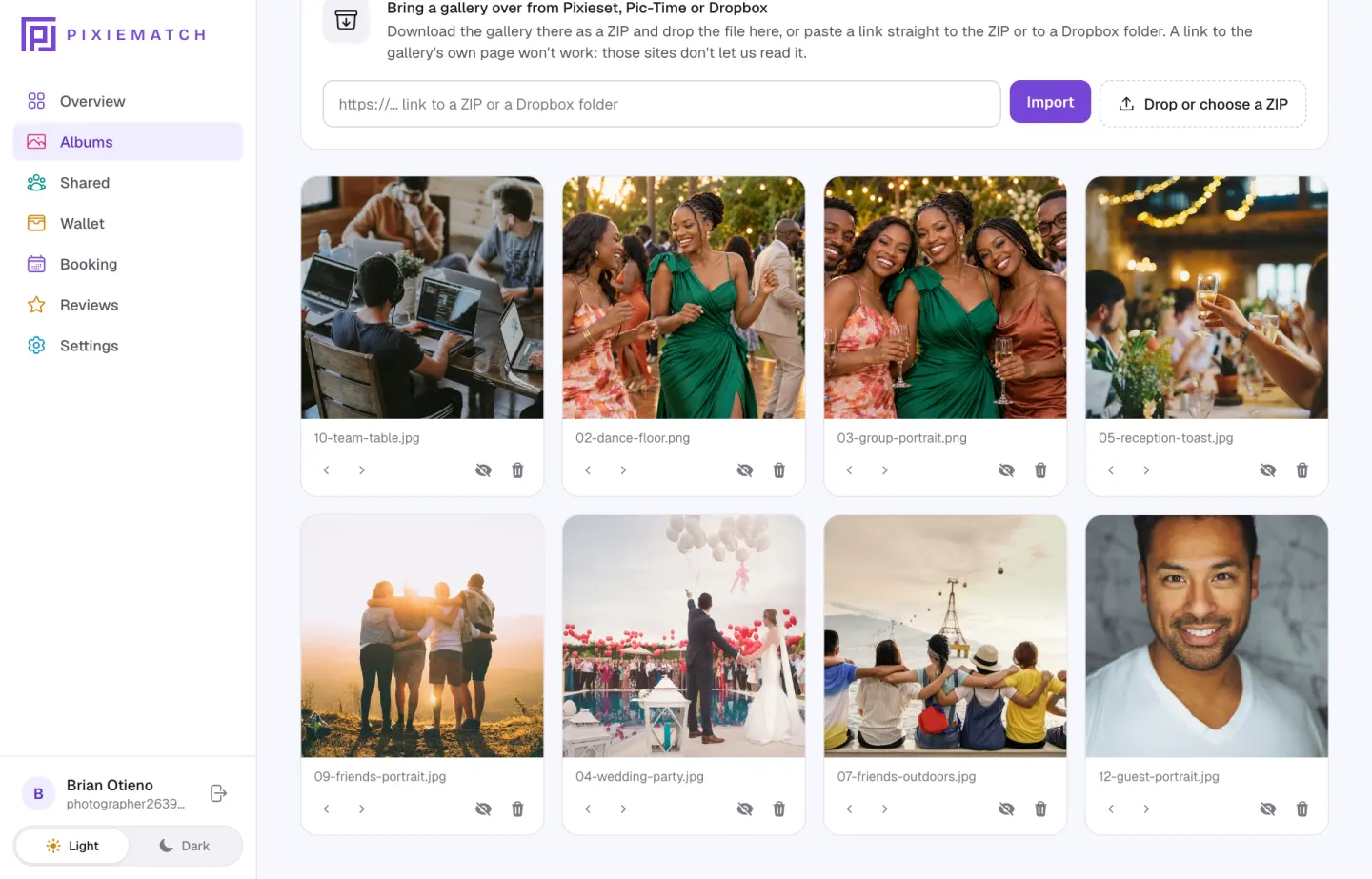
Open Photos and drop in a folder. JPG, PNG, HEIC and videos all work, up to 500 at a time. You can also import from Google Drive, or bring a gallery over from Pixieset, Pic-Time or Dropbox as a ZIP.
- Once the progress panel disappears you can leave the page; processing carries on in the background
- Hide, reorder or delete any photo from its card
-
Step 7
Choose who sees it and what it costs
In Settings, make the album public or private (with an optional PIN), choose free or paid with a price per photo, and keep the watermark on previews until a photo is bought.
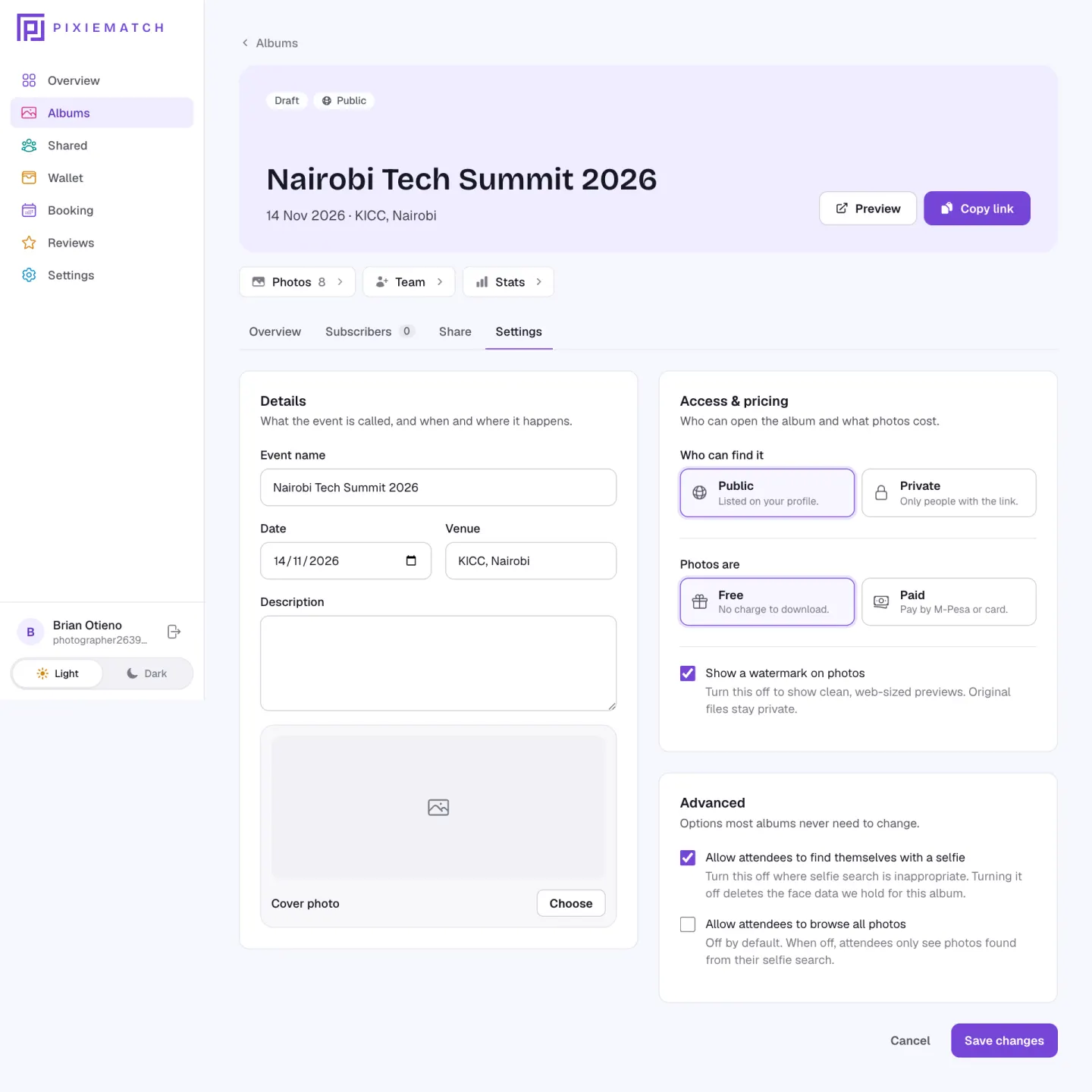
Leave selfie search on. Guests go straight to the photos they're in, and those are the ones they buy.
-
Step 8
Bring in a second shooter
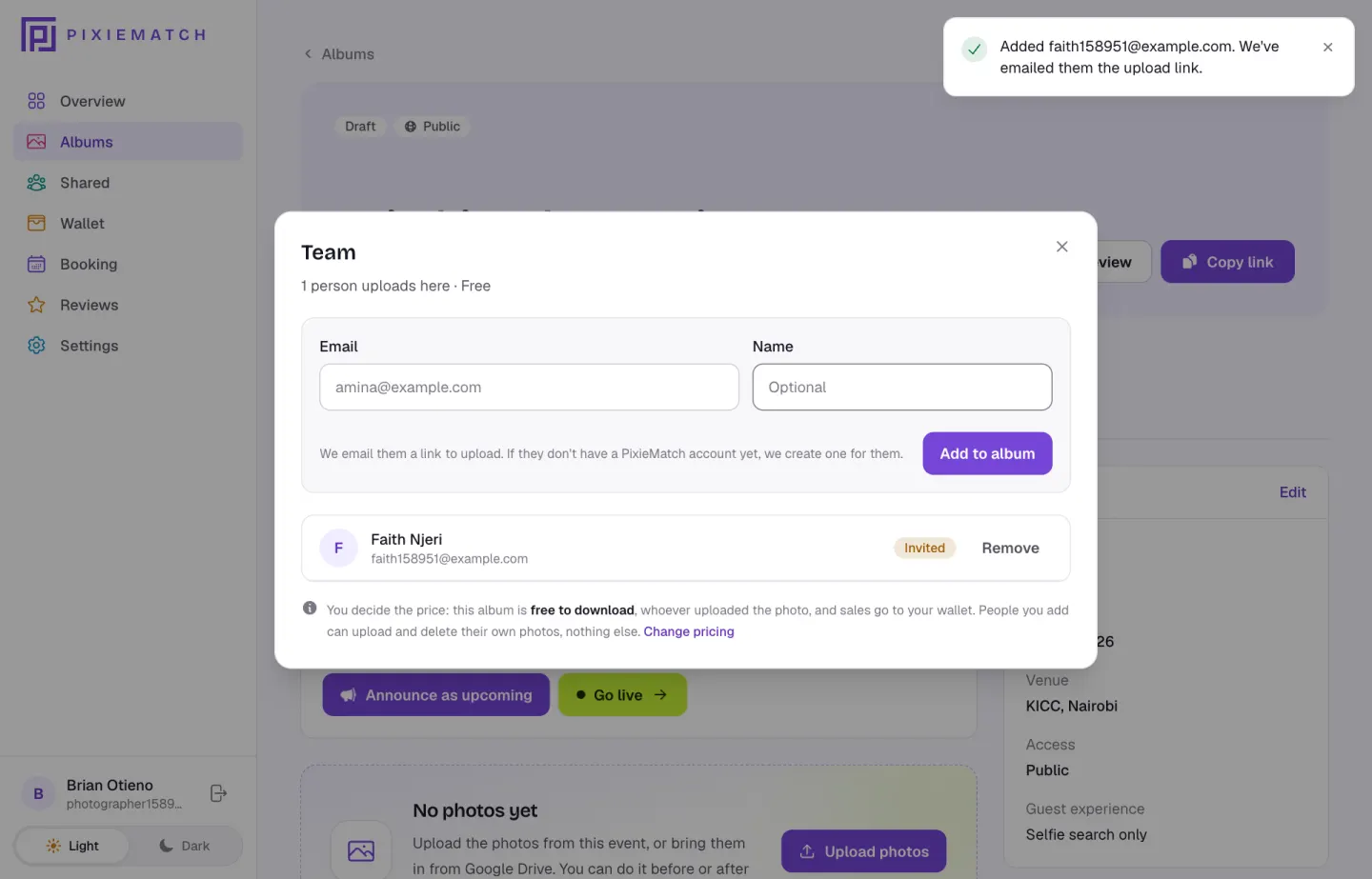
Covering the event with others? On the album page, click Team, type their email (their name is optional) and click Add to album. We email them a link to upload straight into your album, and create a PixieMatch account for them if they don't have one.
- They can upload and delete their own photos, nothing else
- You set the price, and every sale goes to your wallet
- Invited means they haven't opened their link yet. Click Remove to take someone off
-
Step 9
Go live and share the link
On the Overview tab, click Announce as upcoming before the event so guests can sign up for alerts, or Go live once your photos are ready. Then, on the Share tab, copy the album link or download the QR code as a PNG or SVG, and print the poster for the venue.
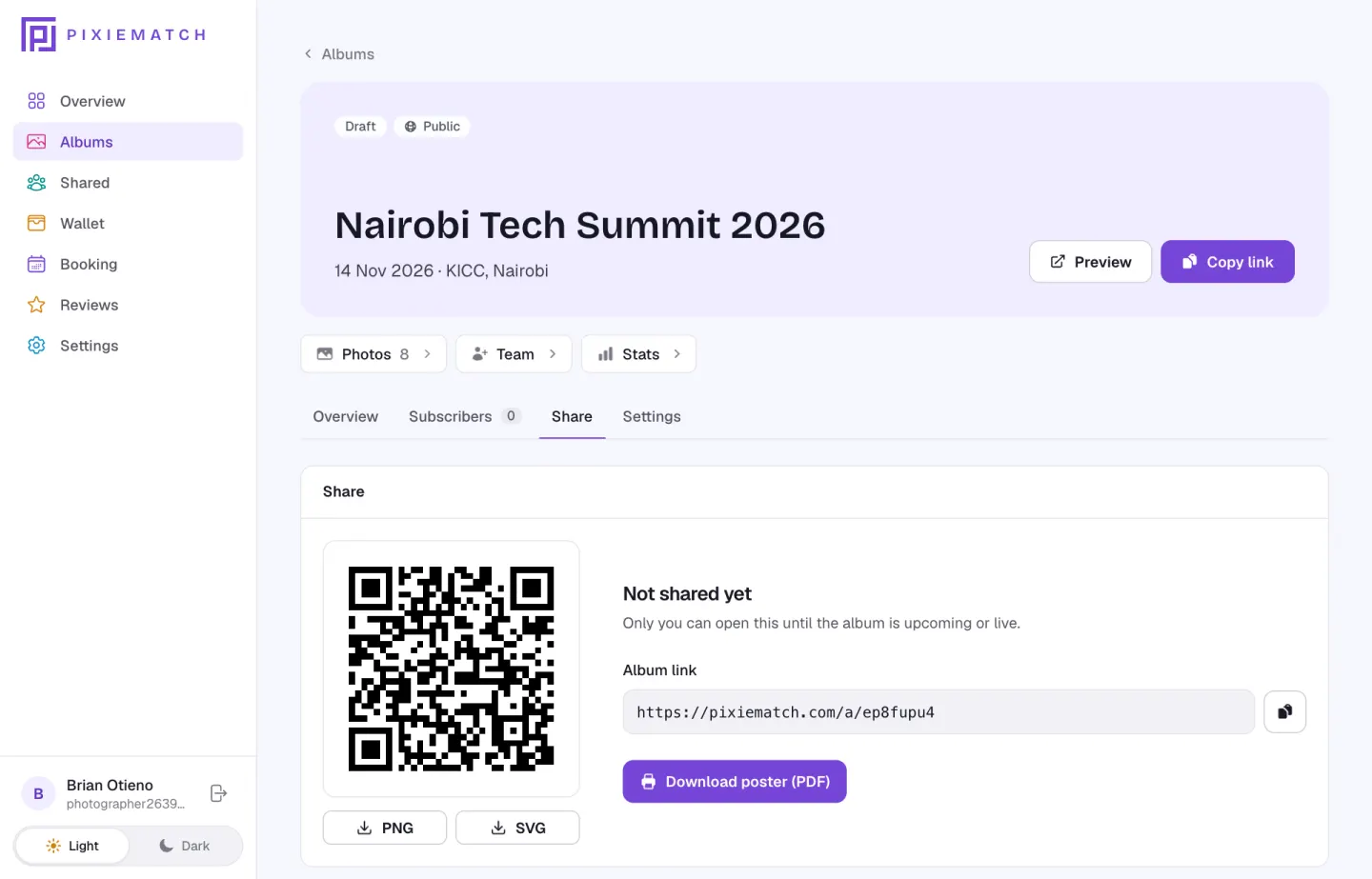
While the album is a draft, the link only opens for you. Guests can open it once it's upcoming or live.
-
Step 10
Watch the sales come in
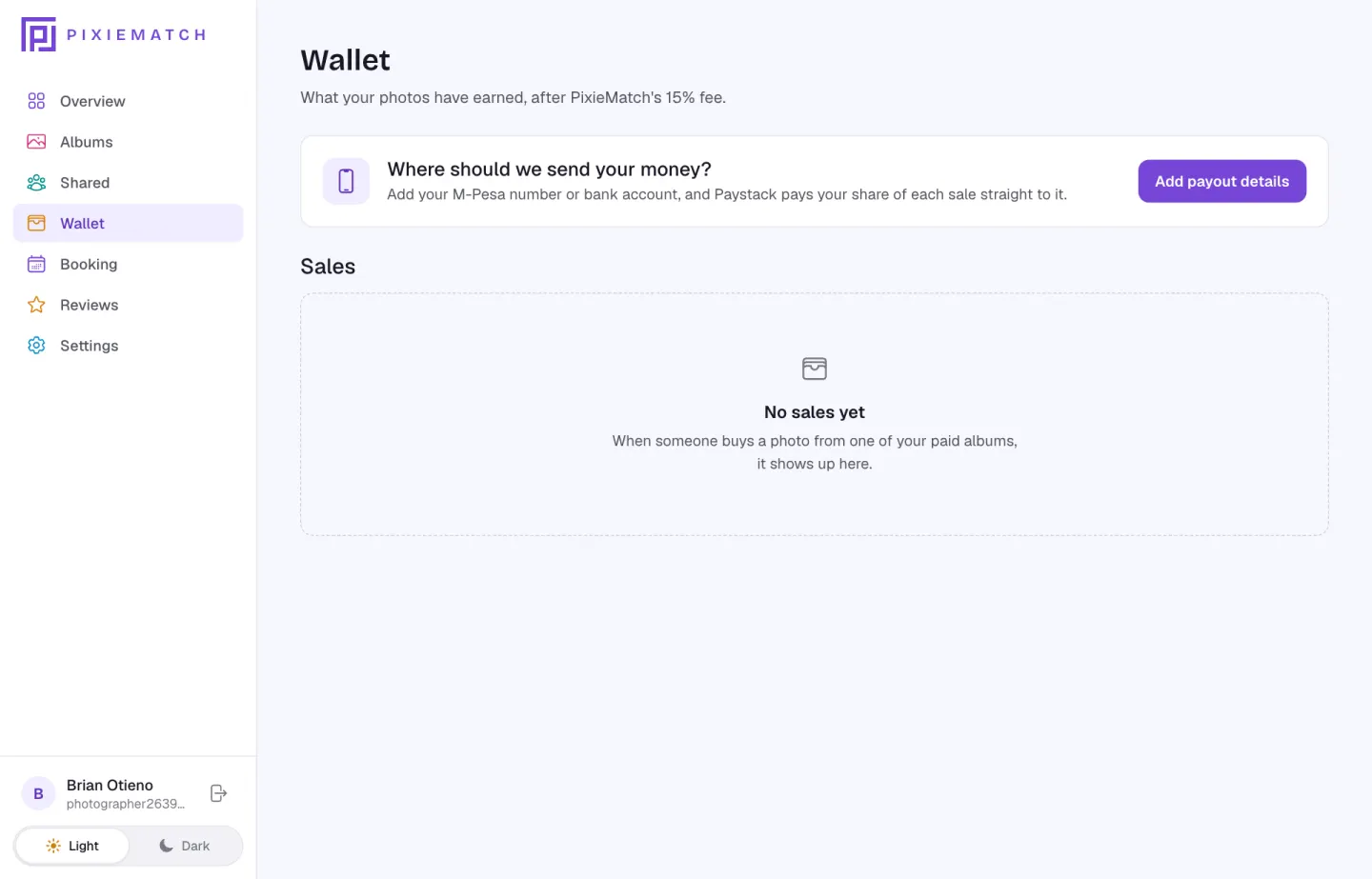
Wallet lists every sale. Paystack pays your share of each one, after the PixieMatch fee, straight to the mobile money number or bank account you saved. If you skipped step 3, this is where you'll be asked to add it.
-
You're ready for your next shoot.
Once an album is live, the Stats page shows visitors and sales, and every sale lands in your wallet.