Getting started
Collect every photo from your event in one album.
Create a shared album, add your photographers, choose whether guests can upload and whether photos are free or paid, then put a QR code on the tables. You decide what stays.
-
Step 1
Create your account
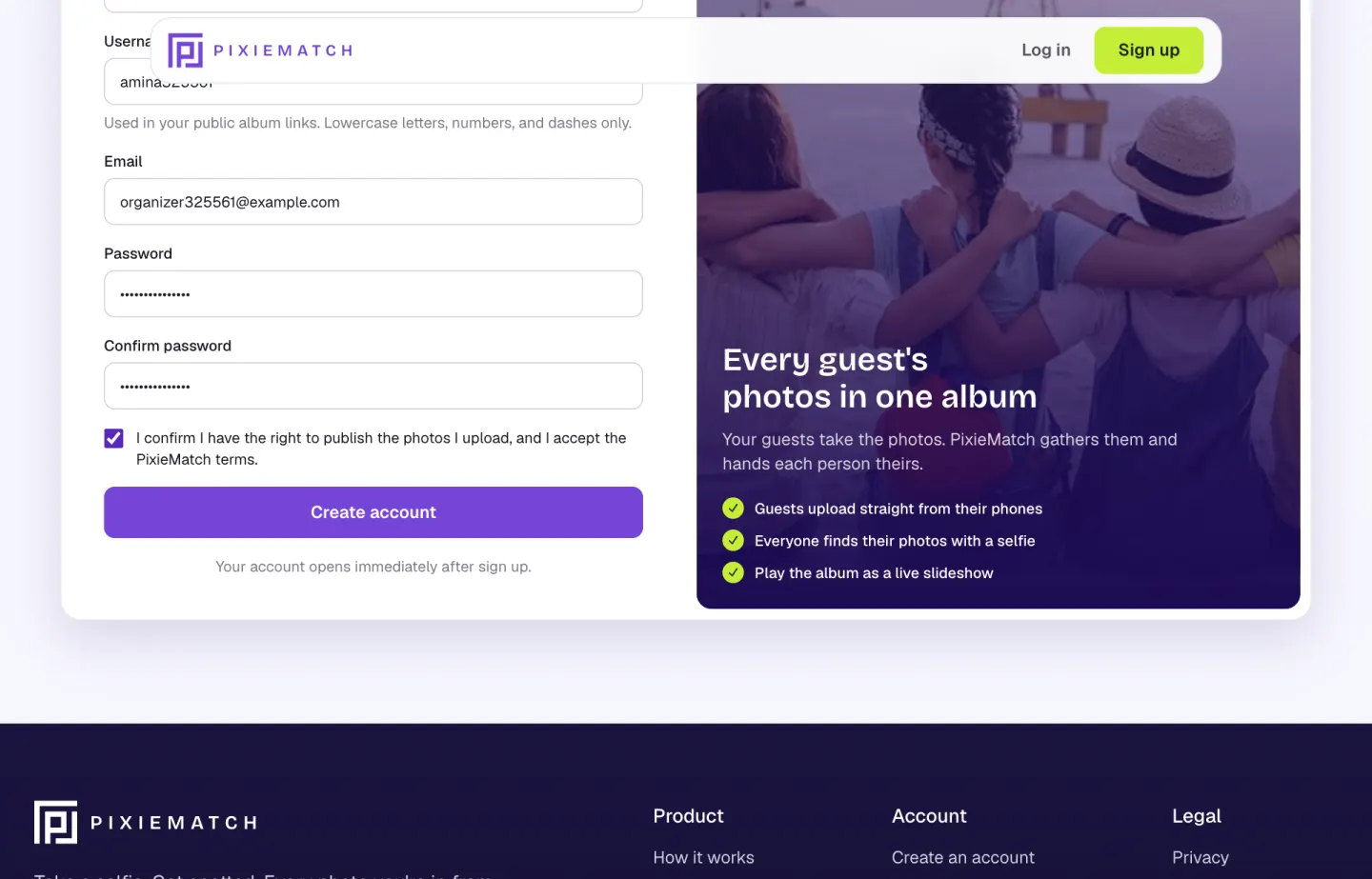
Go to Sign up and choose Organizer, or simply continue with Google. Add your name, a username and your email. It's free for organizers.
-
Step 2
Create a shared album
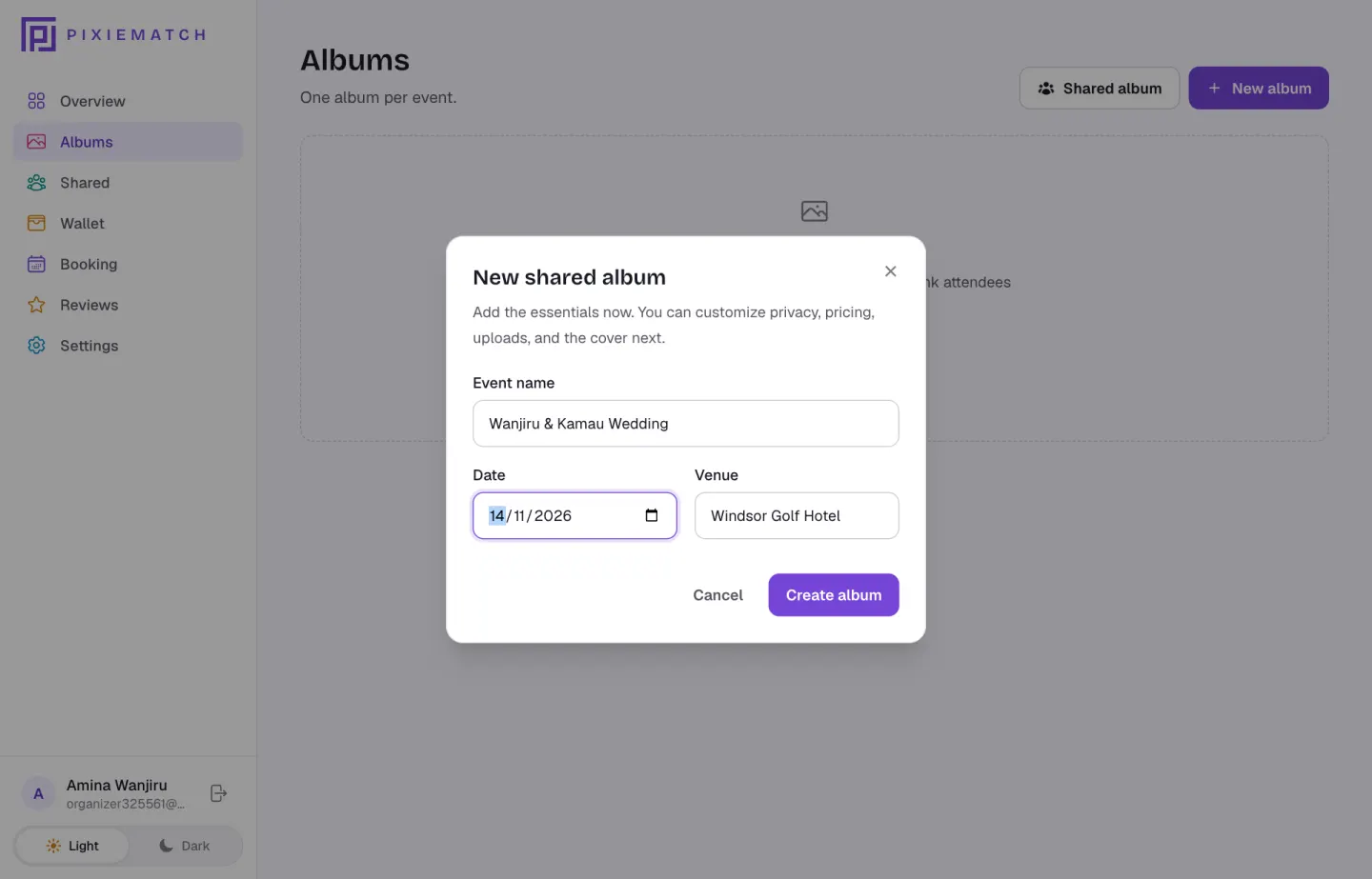
In Albums, click Shared album and add the event name, date and venue. A shared album lets several people upload into it: your photographers and, if you allow it, your guests.
-
Step 3
Get to know your album
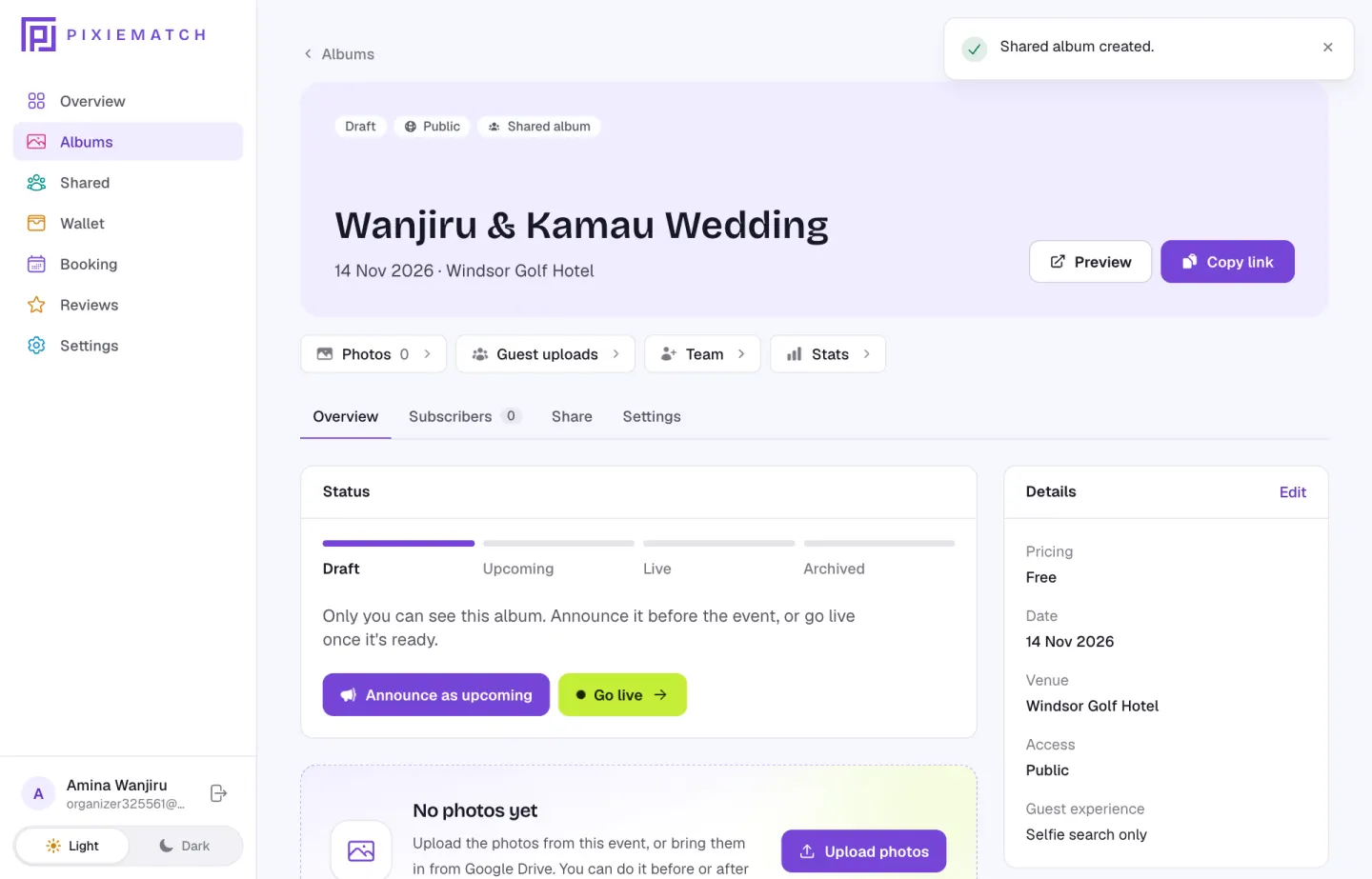
The album page links to everything: Photos, Guest uploads, Team and Stats. It starts as a draft that only you can see.
-
Step 4
Add the people who'll upload
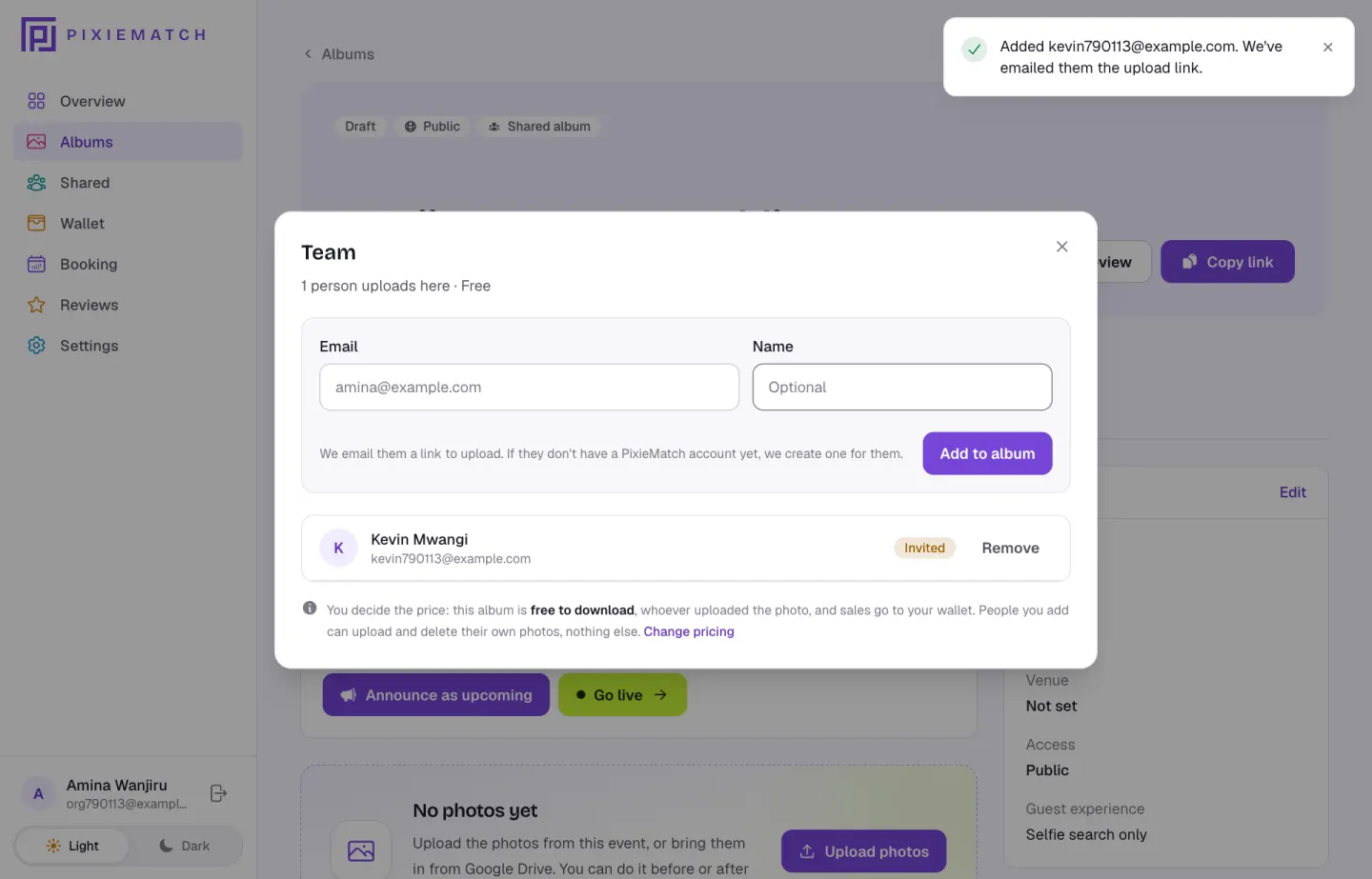
On the album page, click Team. In the popup, type a photographer's email (their name is optional) and click Add to album. We email them a link to upload. If they don't have a PixieMatch account yet, we create one for them.
- Invited means they haven't opened their link yet. Click Remove to take someone off at any time
- People you add can upload and delete their own photos, nothing else
- You still decide whether photos are free or paid, and sales go to your wallet
-
Step 5
Decide who uploads and what photos cost
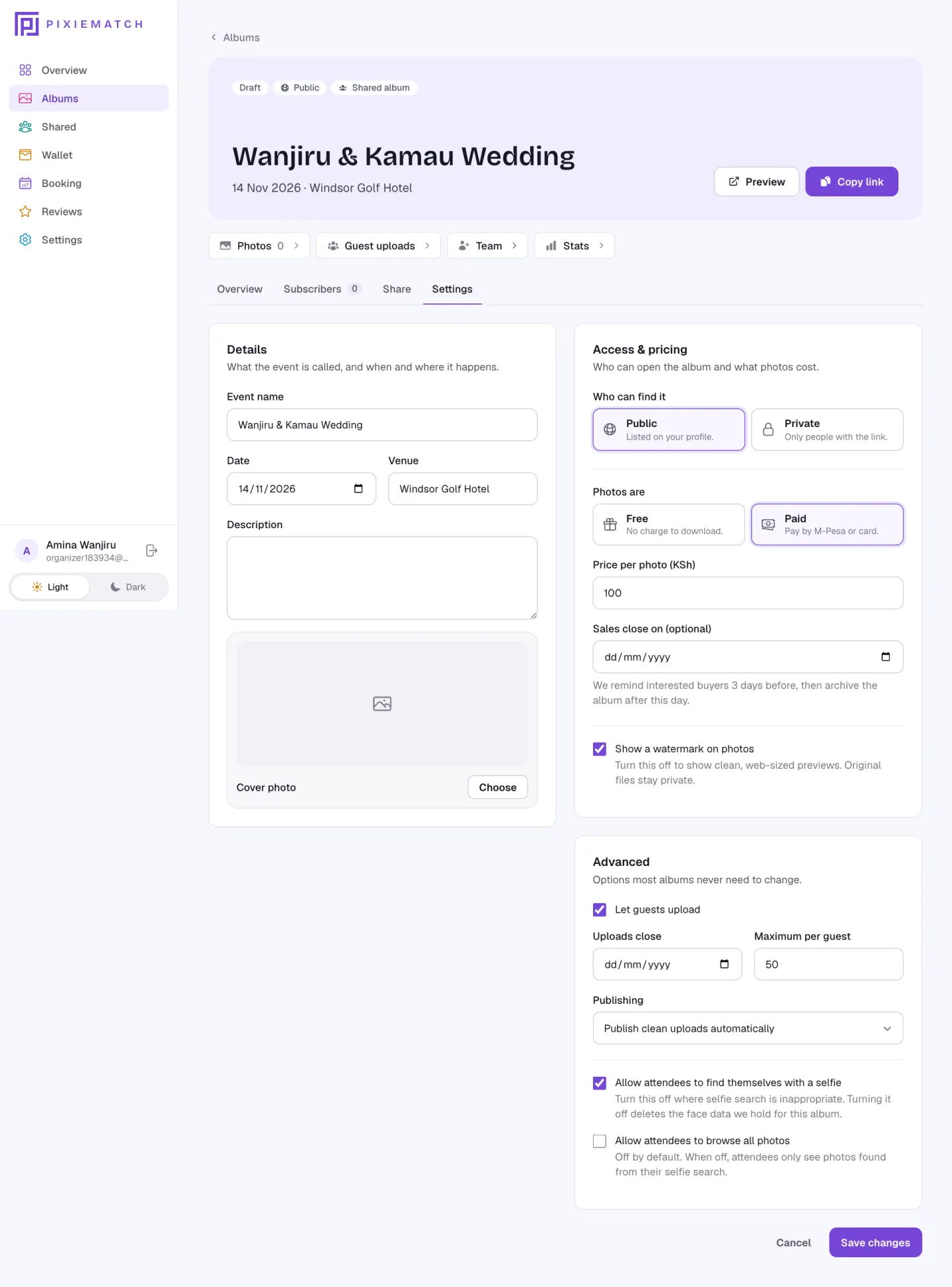
Open the Settings tab. Everything here is your call, and you can change it any time.
- Let guests upload: turn it on to collect photos from guests' phones, or off if only your team uploads
- If guests can upload, choose when uploads close, how many each guest may send, and whether clean uploads publish automatically or wait for your approval
- Photos are free or paid: choose Paid and set a price per photo to sell them, with previews watermarked until they're bought
- Public lists the album on your profile. Private means only people with the link can open it
Charging for photos? Add your mobile money number or bank account under Wallet first. A paid album can't go live without it.
-
Step 6
Go live and put the QR code on the tables
On the Overview tab, click Go live (or Announce as upcoming before the day). Then, on the Share tab, download the poster or the QR code. Guests scan it, open the album on their phones and upload. They don't need an app.
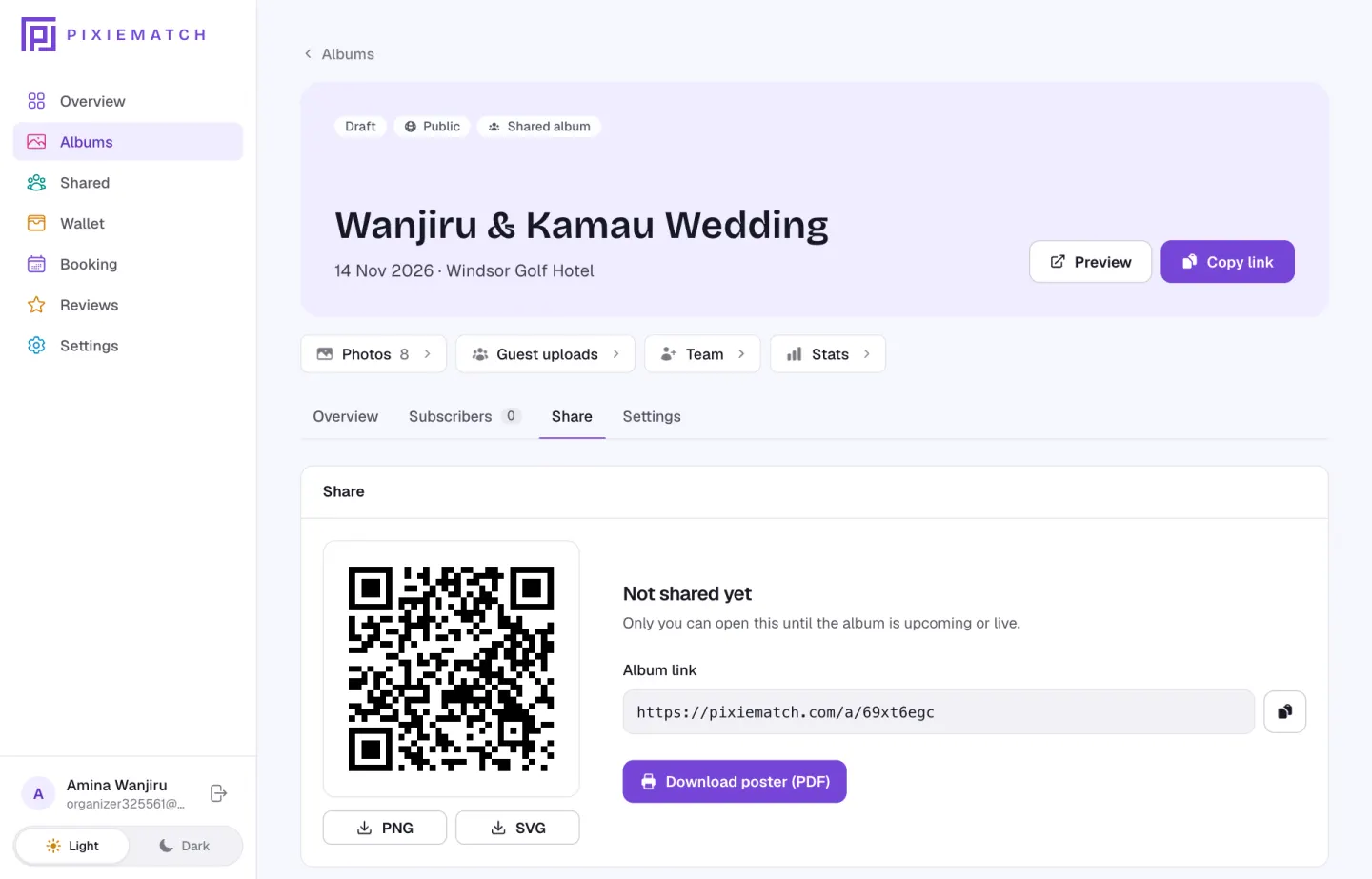
While the album is a draft, the link only opens for you. Table cards for every table are under Guest uploads, in Event tools.
-
Step 7
Review what guests share
Guest uploads shows every photo as it comes in. Hide or delete anything you don't want, check the Needs approval and Flagged tabs, and see who has uploaded.
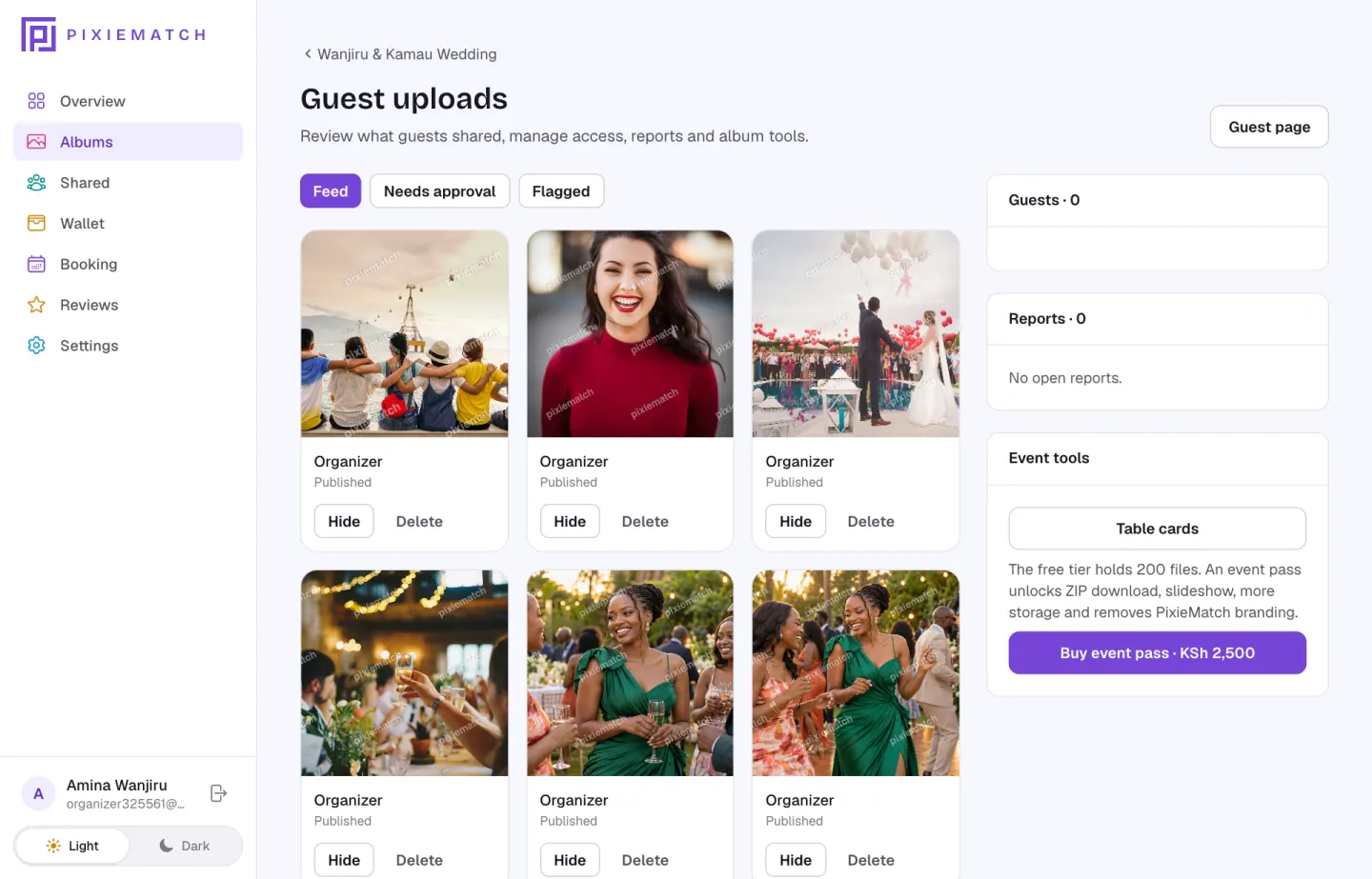
An event pass unlocks the live slideshow for the big screen, the full ZIP download and more storage.
-
Your event is ready.
On the day, keep Guest uploads open to approve photos as they arrive. When it wraps, download the whole album.